Click to Edit: Change Your Website Right on the Page
Published · Updated · 5 min read
The short version
A C Building site doesn't need the AI for every change. In the editor, click any text, image or section on the page and a toolbar appears beside it; double-click text to type over it. Changes save automatically and don't use AI edits. Bigger changes still go to the AI, and you can mix the two freely.
On this page
The fastest part of building a website with AI is the first step: describe your business and a complete site is ready in minutes. What takes time is the years after launch: new opening hours, a new product, a better photo, a phone number with one digit wrong.
If every one of those means going back to the AI, waiting for it, and checking it didn't change something else along the way, fixing a single number turns into a conversation. That's why C Building focuses on what happens after the build. You can edit by chat, telling the AI what to change, or by click, changing the page yourself.
This post is about the second one: click to edit.
Click it, change it, right on the page
The editor shows your website as it really looks, not a form or a stack of block settings.
- Click any text, image or section to select it. A toolbar for that element appears next to it.
- Double-click text and type.
- Press Esc or click elsewhere to finish. Changes save automatically, and the top bar shows "Saved".
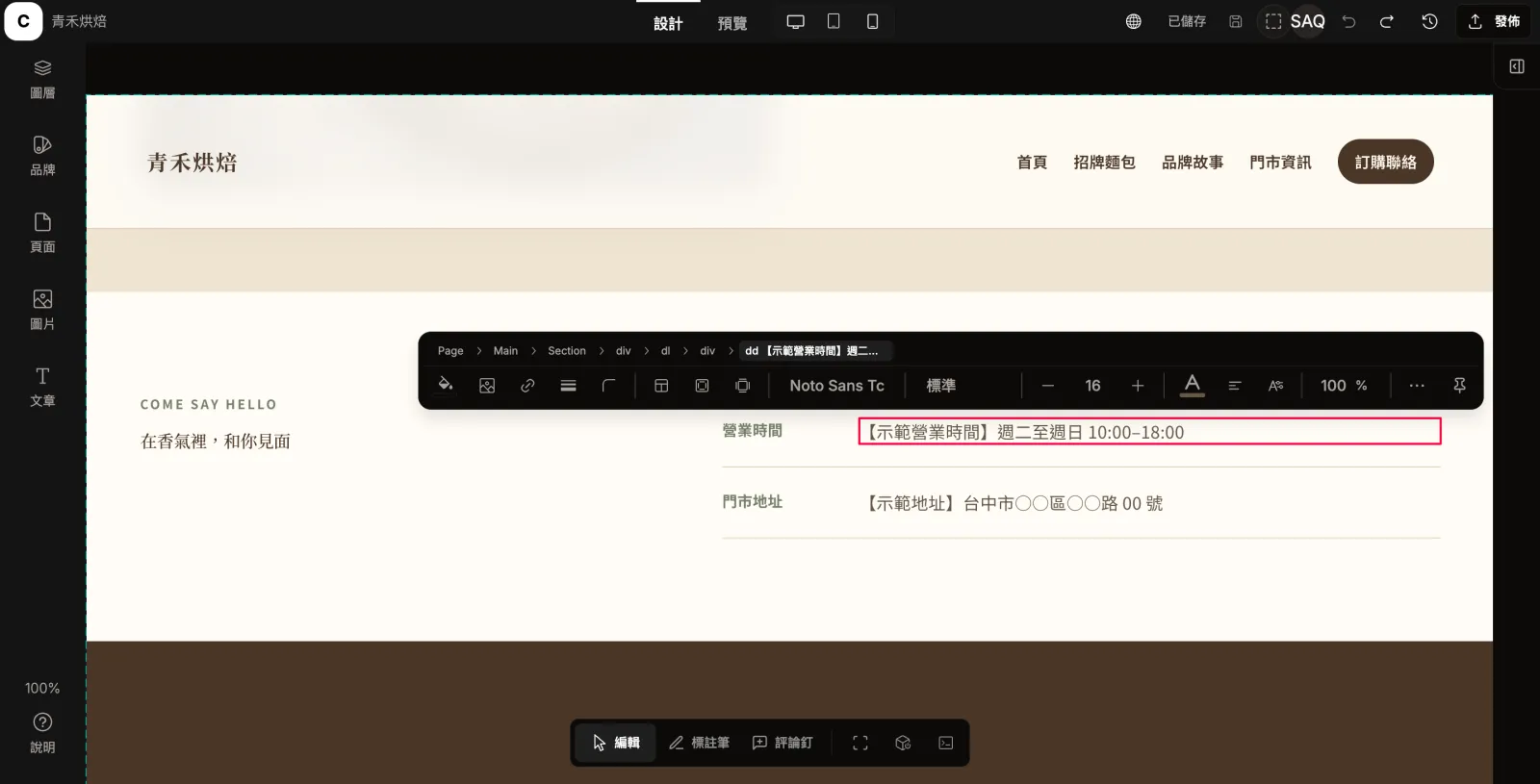
The site in these screenshots, Qinghe Bakery, is a fictional business we built with C Building. When the AI built it, it left placeholder text such as "[Sample opening hours]". Replacing it with the real hours takes a double-click and one line of typing, no conversation needed.
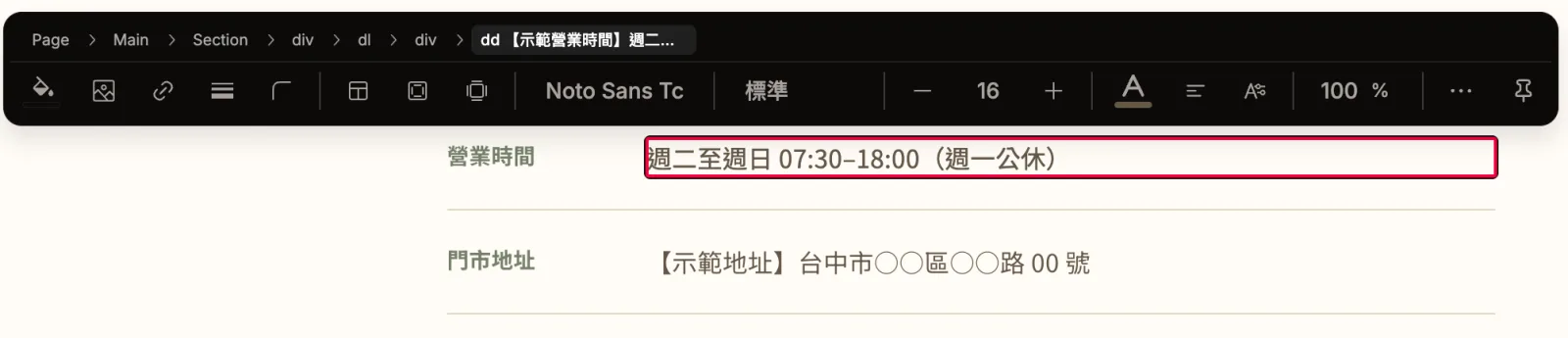
What you can change
The toolbar changes with what you select:
| You select | You can change |
|---|---|
| Text | Wording, font, weight, size, color, alignment; advanced typography for line height, letter spacing, underline and strikethrough |
| Images | Swap the image from your image library or your computer, crop and set a focal point, fit, alt text |
| Sections and buttons | Background color, border, corner radius, padding and margin, layout, width and height, opacity |
| Links | Point to another website, another page of your site, or a section on the same page; open in a new tab |
The toolbar follows your selection by default. If it's in the way, pin it to the top.
Swapping a photo
Select a photo and click its thumbnail in the toolbar to pick one from your image library or upload a new one. Uploads are compressed automatically so your pages load faster; tick "Keep original (no compression)" when you need full quality.
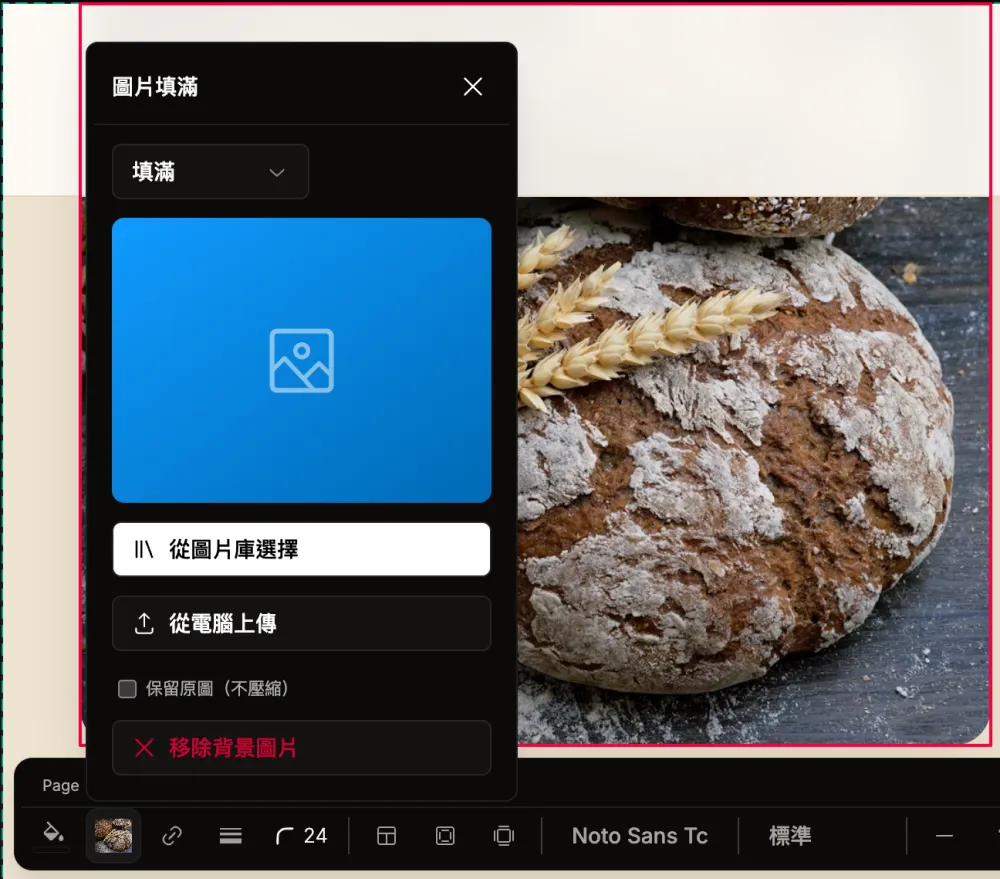
You can reframe a photo too. "Crop and set focus" lets you pick an aspect ratio (original, 1:1, 4:3, 16:9 or free) and keep the focus on the bread or the person; cancel and the page stays as it was. Add alt text so visitors using screen readers know what the photo shows, or mark a purely decorative image as decorative.
One element, or all of them?
A "Style source" label in the toolbar tells you where a style comes from: your brand, the whole site, the page, a component, or this element alone. You know how far a change reaches before you make it. Adjust a single element and the label changes to "Local style", so only that element changes, and you can reset each property back to the site setting. To change fonts or brand colors everywhere at once, use the Brand panel on the left.
When to hand it to the AI
Click to edit is for changes where you already know the result you want. For these, the AI is faster:
- Adding a whole new section, such as an FAQ, or a new page
- Rewriting copy or changing the overall style
- Updating information that appears in several places, such as opening hours in both the visit section and the footer. Tell the AI "change the opening hours everywhere to …" and it finds them all.
The two work together. Select an element on the page, then tell the AI what to do: the chat carries your selection, so the AI works on that element only.
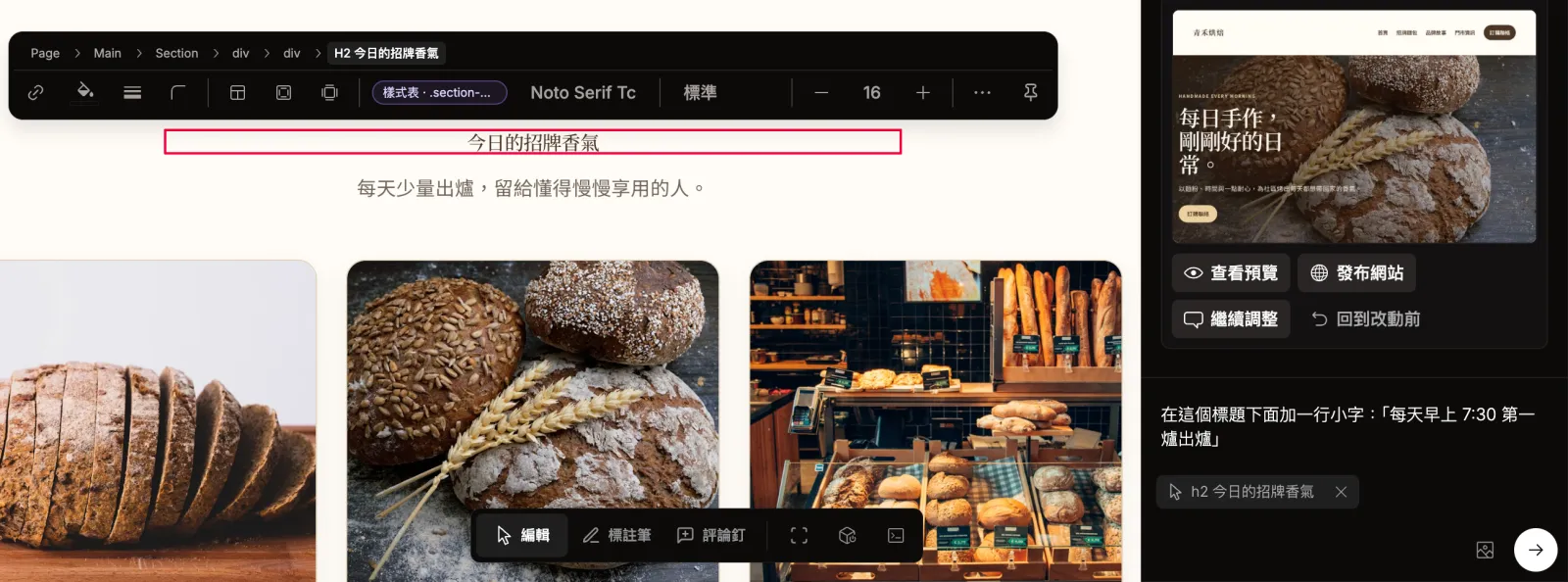
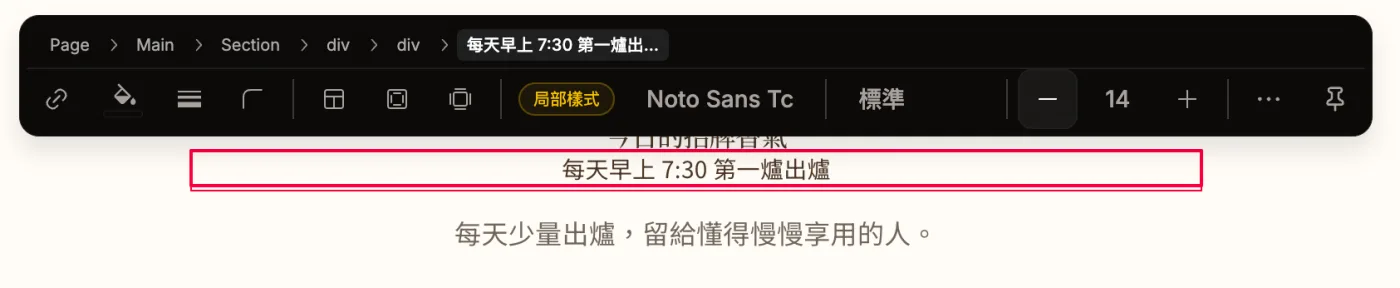
When the AI's result is close but not quite right, you don't have to explain it again. Here the line the AI added came out larger than intended; selecting it and taking the size from 16 down to 14 fixed it, and the label switched to "Local style".
Two more tools in the bottom bar work with the AI:
- Annotate: circle the spot on the page and tell the AI what to change; hold Shift to draw a rectangle.
- Comment: leave numbered comments on the page as you look through it, then hand them all to the AI at once.
See it on a phone
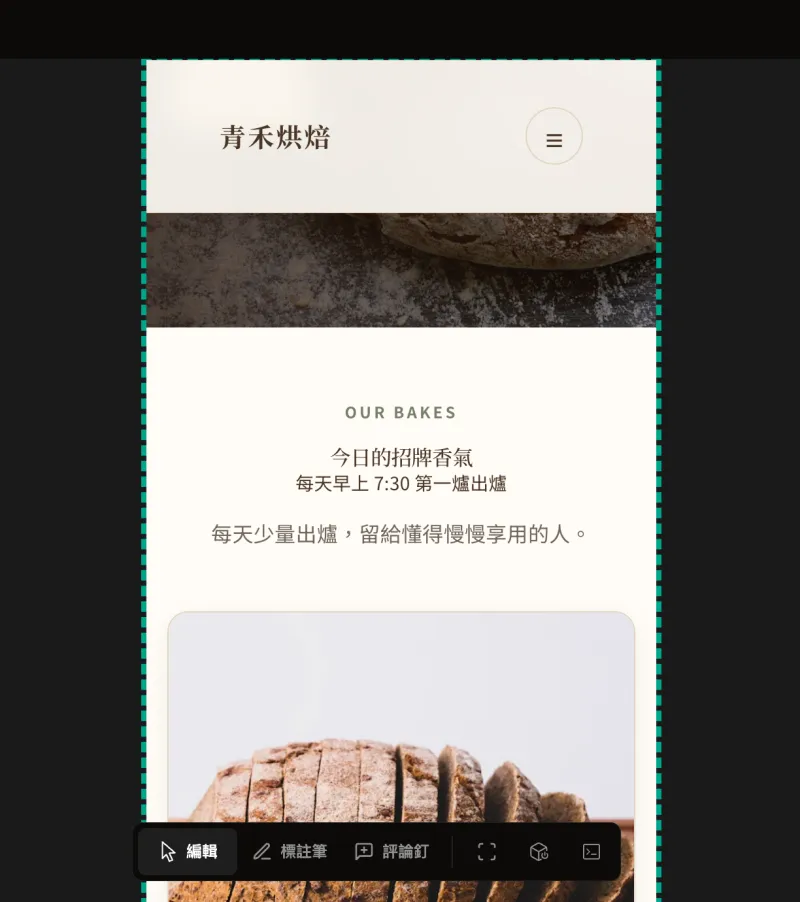
The desktop, tablet and phone buttons at the top switch the preview size. They change only the preview: your style changes apply to every screen size, so a quick look on the phone view is all it takes.
Nothing is final until you publish
- Undo and redo: the arrows at the top right step back one change at a time.
- Version history: before a big change, click "Save current version" so you can restore it later.
- Preview, then publish: edits in the editor don't reach your live site on their own. Switch to Preview, check, then click Publish.
Why both ways matter
Plenty of AI tools can edit a website for you, but what they edit is code. If you don't write code, every future change has to go back through the AI; it becomes the only way in.
C Building's AI edits your site too. The difference is that your site stays a page you can click and change yourself: hand the big changes to the AI, make the small ones yourself, and wait on no one for either.
FAQ
Do I need to know how to code?
No. The editor shows your site as it really looks; click what you want to change and use the toolbar or type.
Do my own edits use AI edits?
No. Only chatting with the AI in the editor counts as an AI edit. Clicking and typing yourself is unlimited.
Do changes go live right away?
No. Changes save automatically in the editor and reach your live site only when you click Publish, so you can edit and preview first.
Do I have to edit the mobile version separately?
No. Style changes apply to every screen size. The desktop, tablet and phone buttons only switch the preview.
Can I undo a mistake?
Yes. Use undo for small changes. Before a big one, save a version in Version history so you can restore the whole site if needed.
The same information appears in several places. Do I edit each one?
Click to edit changes one place at a time. For details like opening hours or a phone number that appear in several places, ask the AI to "change it everywhere" so none get missed.
Get started
If you already have a C Building site, open the editor and click. If not, build your first site for free, no credit card needed; compare plans on the pricing page.
- Product updates
- Visual editing
- AI website builder